---
updatedAt: 2026-07-10T19:01:19.000Z
---
Fetch the complete documentation index at: https://docs.lumalabs.ai/llms.txt. Use this file to discover all available pages before exploring further.
# Image Generation
### Looking for the latest Luma API?
Create and manage API access in the [Luma API Platform](https://platform.lumalabs.ai/). For current API guides and reference, visit the [Luma Agents API documentation](https://docs.agents.lumalabs.ai/).
# Installation
```python
pip install lumaai
```
# Authentication
1. Get a key from
2. Pass it to client sdk by either
1. setting `LUMAAI_API_KEY`
2. or passing `auth_token` to the client
# Setting up client
Using `LUMAAI_API_KEY` env variable
```python
from lumaai import LumaAI
client = LumaAI()
```
Using auth\_token parameter
```python
import os
from lumaai import LumaAI
client = LumaAI(
auth_token=os.environ.get("LUMAAI_API_KEY"),
)
```
## How do I get the image for a generation?
* Right now the only supported way is via polling
* The `create` endpoint returns an id which is an UUID V4
* You can use it to poll for updates (you can see the image at `generation.assets.image`)
### Usage Example
```python
import requests
import time
from lumaai import LumaAI
client = LumaAI()
generation = client.generations.image.create(
prompt="A teddy bear in sunglasses playing electric guitar and dancing",
)
completed = False
while not completed:
generation = client.generations.get(id=generation.id)
if generation.state == "completed":
completed = True
elif generation.state == "failed":
raise RuntimeError(f"Generation failed: {generation.failure_reason}")
print("Dreaming")
time.sleep(2)
image_url = generation.assets.image
# download the image
response = requests.get(image_url, stream=True)
with open(f'{generation.id}.jpg', 'wb') as file:
file.write(response.content)
print(f"File downloaded as {generation.id}.jpg")
```
# Async library
Import and use `AsyncLumaai`
```python
import os
from lumaai import AsyncLumaAI
client = AsyncLumaAI(
auth_token=os.environ.get("LUMAAI_API_KEY"),
)
```
For all the functions add await (eg. below)
```python
generation = await client.generations.image.create(
prompt="A teddy bear in sunglasses playing electric guitar and dancing",
)
```
# Aspect Ratio and Model
For all your requests, you can specify the aspect ratio you want and also the model to be used.
## Aspect ratio
You can choose between the following aspect ratios:
* 1:1
* 3:4
* 4:3
* 9:16
* 16:9 (default)
* 9:21
* 21:9
To use it, simply include a new key under your payload:
```
prompt="A teddy bear in sunglasses playing electric guitar and dancing",
aspect_ratio="3:4"
```
## Model
You can choose from our two model versions:
* photon-1 (default)
* photon-flash-1
To use it, simply include a new key under your payload:
```
prompt="A teddy bear in sunglasses playing electric guitar and dancing",
model="photon-flash-1"
```
# Text to Image
```python Python
generation = client.generations.image.create(
prompt="A teddy bear in sunglasses playing electric guitar and dancing",
)
```
## With aspect ratio and model
```python Python
generation = client.generations.image.create(
prompt="A teddy bear in sunglasses playing electric guitar and dancing",
aspect_ratio="3:4",
model="photon-1"
)
```
# Image Reference
### Image URL
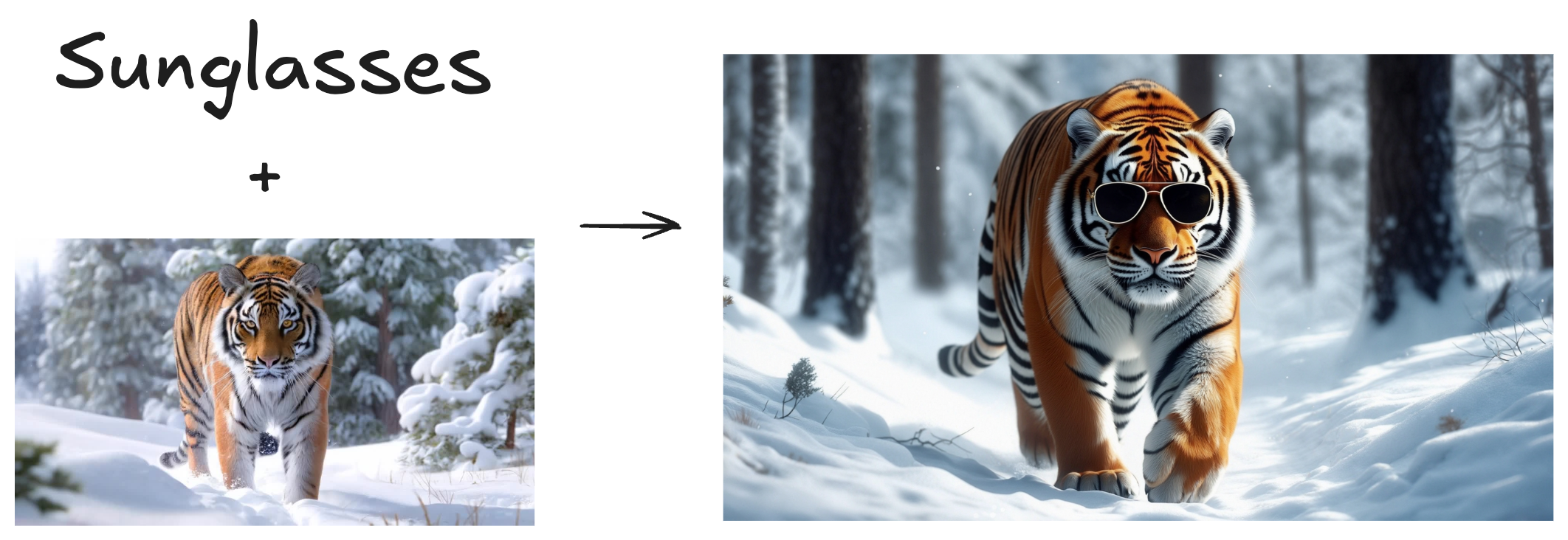
You should upload and use your own cdn image urls, currently this is the only way to pass an image
This feature allows you to guide your generation using a combination between images and prompt. You can use up to 4 images as references. This feature is very useful when you want to create variations of an image or when you have a concept that is hard to describe, but easy to visualize. You can use the `weight` key to tune the influence of the images.
```python
generation = client.generations.image.create(
prompt="sunglasses",
image_ref=[
{
"url": "https://storage.cdn-luma.com/dream_machine/7e4fe07f-1dfd-4921-bc97-4bcf5adea39a/video_0_thumb.jpg",
"weight": 0.85
}
]
)
```
# Style Reference
### Image URL
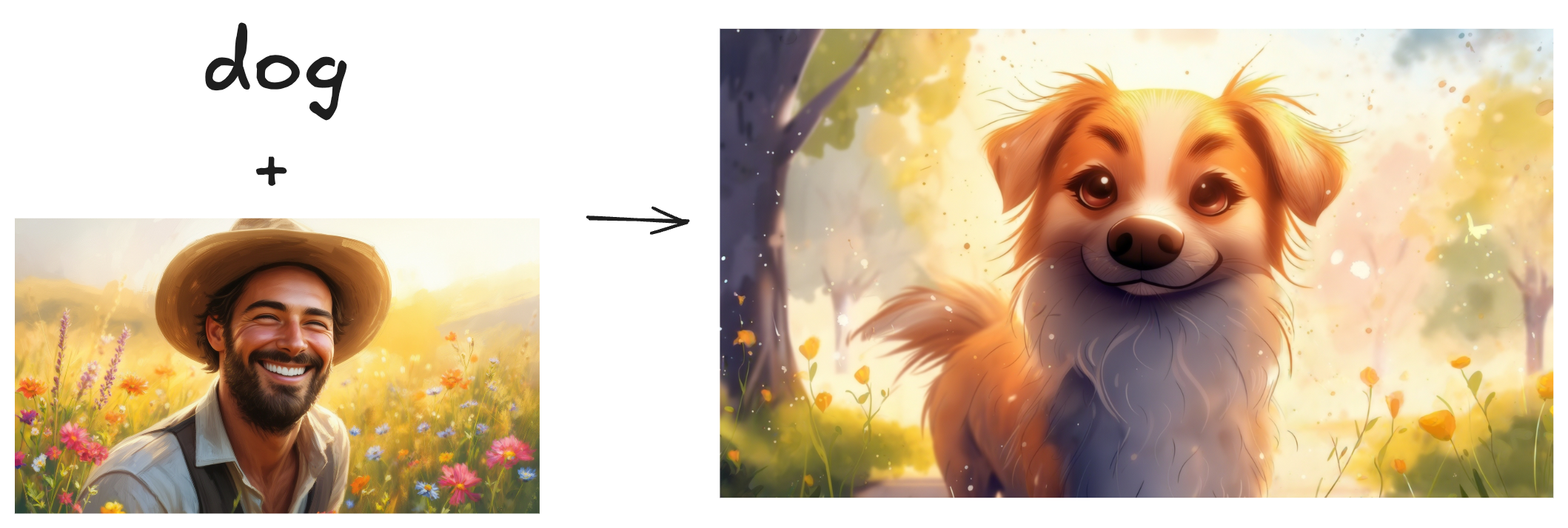
You should upload and use your own cdn image urls, currently this is the only way to pass an image
As the name suggests, this feature is used when you want to apply an specific style to your generation. You can use the `weight` key to tune the influence of the style image reference.
```python
generation = client.generations.image.create(
prompt="dog",
style_ref=[
{
"url": "https://staging.storage.cdn-luma.com/dream_machine/400460d3-cc24-47ae-a015-d4d1c6296aba/38cc78d7-95aa-4e6e-b1ac-4123ce24725e_image0c73fa8a463114bf89e30892a301c532e.jpg",
"weight": 0.8
}
]
)
```
# Character Reference
### Image URL
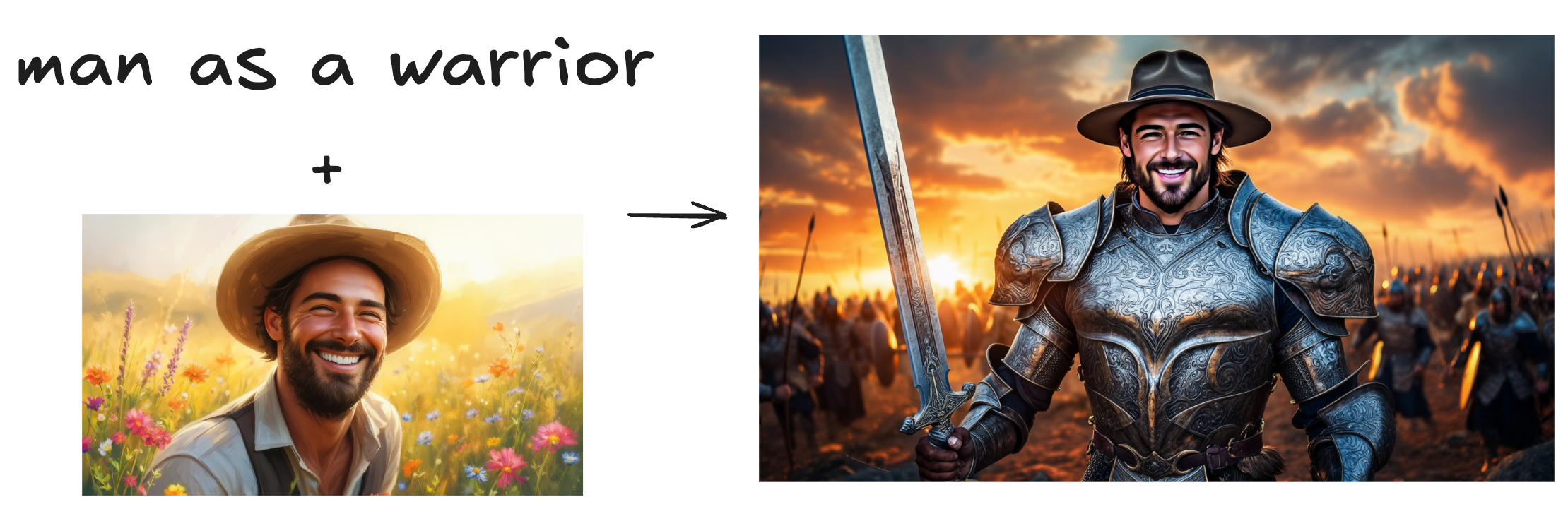
You should upload and use your own cdn image urls, currently this is the only way to pass an image
Character Reference is a feature that allows you to create consistent and personalized characters. Below, you can see how to use it. One thing important to say is that you can use up to 4 images of the same person to build one identity. More images, better the character representation will be.
```python
generation = client.generations.image.create(
prompt="man as a warrior",
character_ref={
"identity0": {
"images": [
"https://staging.storage.cdn-luma.com/dream_machine/400460d3-cc24-47ae-a015-d4d1c6296aba/38cc78d7-95aa-4e6e-b1ac-4123ce24725e_image0c73fa8a463114bf89e30892a301c532e.jpg"
]
}
}
)
```
# Modify Image
### Image URL
You should upload and use your own cdn image urls, currently this is the only way to pass an image
> 🚧 Changing colors of images
>
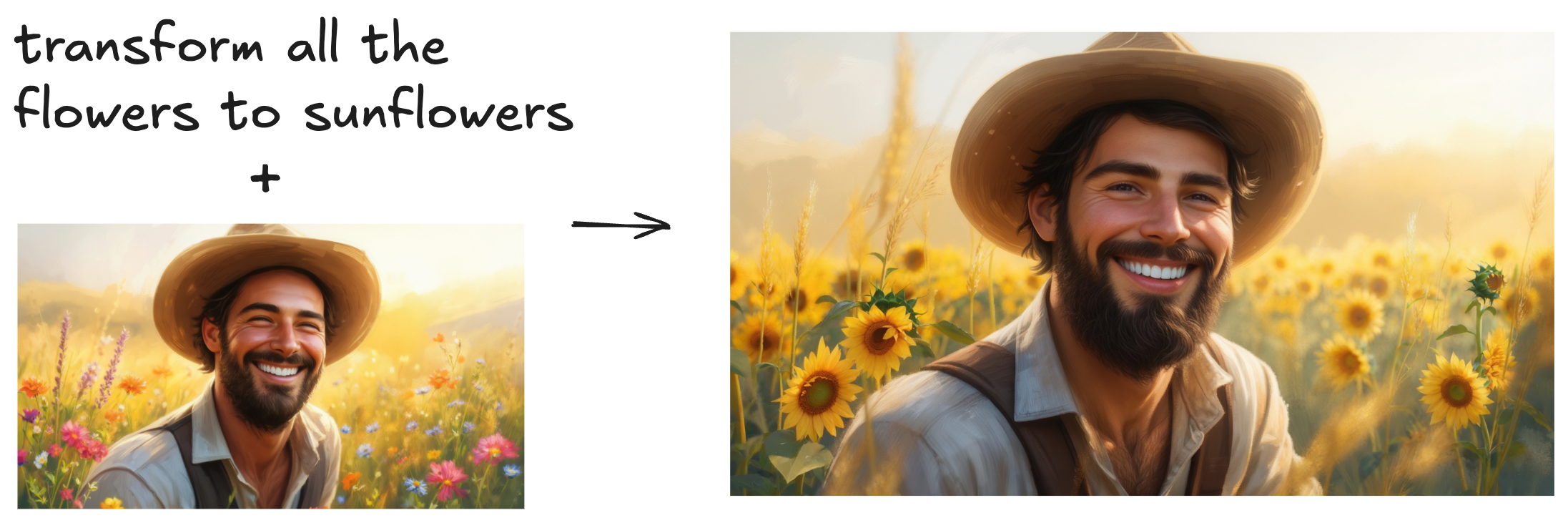
> This feature works really well to change objects, shapes, etc. But when it comes to changing colors, it is harder to get it right. One recommendation is to use a lower `weight` value, something between 0.0 and 0.1.
Modify feature allows you to refine your images by simply prompting what change you want to make. You can use the `weight` key to specify the influence of the input image. Higher the weight, closer to the input image but less diverse (and creative).
```python
generation = client.generations.image.create(
prompt="transform all the flowers to sunflowers",
modify_image_ref={
"url": "https://staging.storage.cdn-luma.com/dream_machine/400460d3-cc24-47ae-a015-d4d1c6296aba/38cc78d7-95aa-4e6e-b1ac-4123ce24725e_image0c73fa8a463114bf89e30892a301c532e.jpg",
"weight": 1.0
}
)
```
# Generations
## Get generation with id
```python
generation = client.generations.get(id="d1968551-6113-4b46-b567-09210c2e79b0")
```
## List all generations
```python
generation = client.generations.list(limit=100, offset=0)
```
## Delete generation
```python
generation = client.generations.delete(id="d1968551-6113-4b46-b567-09210c2e79b0")
```
# How to get a callback when generation has an update
* It will get status updates (dreaming/completed/failed)
* It will also get the image url as part of it when completed
* It's a `POST` endpoint you can pass, and request body will have the generation [object](https://github.com/lumalabs/lumaai-api/blob/35768db34e52600e319cb799e4488249e61eef17/openapi.yaml#L258) in it
* It expected to be called multiple times for a status
* If the endpoint returns a status code other than 200, it will be retried max 3 times with 100ms delay and the request has a 5s timeout
Example
```python
generation = await client.generations.image.create(
prompt="A teddy bear in sunglasses playing electric guitar and dancing",
callback_url=""
)
```